
Trainings
Organising trainings: creating them, sign-ups, line-ups and attendance. What a member sees and does is described on the Member page.
| What | Admin | Treasurer |
|---|---|---|
| create, edit, cancel and delete a training, the note, opening and closing sign-ups | ✓ | |
| asking for an answer, signing someone up for them, deleting someone else's comment | ✓ | |
| line-ups, attendance, statistics | ✓ | ✓ |
Creating trainings
On the team page, on the Trainings tab, tap “New training” (or “+” in the top right corner of the Trainings tab): date and time, place, duration, number of places, price, minimum signed up and when sign-ups close (e.g. “4” hours before the start). Leave the price empty if the team price applies; enter another one e.g. for a more expensive venue or a tournament (0 = free). A member's individual price takes precedence over the training price. The fields are filled in from the last training and the team settings, so you usually change only the date. The minimum signed up cannot be higher than the number of places (this applies to the team settings too). Less frequently changed fields are under “More options”; if any of them is filled in, the section is already open.
Repeating
Turn on “Repeat every week” and choose the last date, e.g. 30 November. After tapping “Next” you see the list of dates (at most 60): for each you can change the time or remove it (e.g. a public holiday), then “Create”. Separate trainings are created; you can later move or cancel each of them without affecting the rest. The time stays the same (e.g. 20:00) also after the change to summer or winter time.
Match
You create a match (e.g. a league one) just like a training: in “New training” choose “Match” at the top and fill in the “Match name”, e.g. “League match against the Falcons”. A match stands out in the list of trainings (the “Match” label, its name and a blue stripe on the left); otherwise it works like a training: sign-ups, reserve, note, comments, line-ups and attendance. The line-ups of a match start from the last match, not from a training.
Set the price of the match under “More options” in the “Price” field:
- empty: like a normal training (for members with a pack the match counts towards the pack),
- 0: free for everyone, no pack is used,
- another amount: everyone who pays per training pays this (for members with a pack the match counts towards the pack).
Opening sign-ups
Trainings a week or two away may still change, so sign-ups can open later. In the training, under “More options”, turn on “Open sign-ups later” and choose a date and time. The app shows how long that is before the training (e.g. “3 days 2 h before the training”); in a series the same gap applies to every date. Set the default (in days) in the team settings. Until sign-ups open, members see “Sign-ups open in 3 days, …” and can only tap “Not playing”; you can add someone.
When sign-ups open, members get a “Sign-ups open” notification: right when you create a training with open sign-ups, later at the set time, or after “Open now”. A series of trainings gets one notification, not one for each date.
Sign-up state and changes
In the training details the state of sign-ups is under the “Playing” / “Not playing” buttons (e.g. “Sign-ups open until the start”); for a future training an admin also sees one link there, always with a confirmation: “Open now” (sign-ups are not open yet, e.g. the training has to be arranged earlier), “Close now” (sign-ups are open) or “Reopen” (sign-ups are already closed; it opens them until the training starts). Sign-ups closed early stay closed when you later edit the training, even when you move its time.
Set the default minimum signed up, number of places, and when sign-ups close and open in the team settings. Each training's sign-up deadline is fixed: changing the default does not move trainings that already exist. A training you add when its deadline would already have passed (e.g. a replacement training tonight) has sign-ups open until the start. Change the deadline of a particular training (and its time and place) with “Edit” in the training details. When you change the time or place, the members of the team get a notification. A training that has already started can no longer be moved.
Editing several trainings at once
On the team page, on the Trainings tab tap “Bulk edit” to the right of the “Upcoming trainings” heading. You see the upcoming trainings: tick them one by one, or tap “Similar” next to one to add all of them on the same weekday, at the same time and place (e.g. every Tuesday 20:00 in the hall), also across the change to summer or winter time.
- “Edit”: tick only what you want to change (time, duration, place, places, minimum signed up, price, when sign-ups close and open); the rest stays as it is on each training. The new time applies on each training's own date, the date does not change. When only the time changes, the sign-up deadline moves with it. Members get one notification about all the moved trainings.
- “Delete”: only for trainings created by mistake that nobody has answered; cancel the others one by one.
It is all or nothing: if one of the trainings cannot be changed, nothing is saved and the message says which one (its date and time).
Training note
One text field in the training details: the note under the place, in a box with a megaphone as on the training card (“+ Add note”, and once there is one, a pencil next to it to edit and a red bin to delete; deleting is silent). It is also shown on the training card. When saving you choose whether to “Notify the team”. Without that the change is silent. Nobody replies to the note itself; it is a notice board, and the conversation happens in the comments under the training.
Not enough signed up
The team has a minimum number of sign-ups. While fewer have signed up, the training card shows it (“… · N members missing”). If there are still fewer at the time sign-ups close, the admins get a notification. If the training has no sign-up deadline, the app checks this an hour before the start. The notification comes only once per training.
The app never cancels a training by itself; the decision is yours, because two more people may still sign up.
Asking for an answer
While sign-ups are open and someone has not answered yet, you can nudge them. In the training details tap “Ask for an answer” next to the “No answer” heading. When there are not enough sign-ups for the minimum, you also find the same button under the “… · N members missing” bar. The app asks whether you are sure. Then everyone on the “No answer” list (except you) gets a notification: how many have signed up and that without enough sign-ups the training may not take place. People who have already chosen “Playing” or “Not playing” and people with a suspended membership get nothing. You can send another request after 12 hours at the earliest. Until then you see “asked 2 hours ago” instead of the button, with an ⓘ icon that explains it. The training still never cancels itself; the decision stays with you.
Goalkeepers missing
In a hockey team the training card also shows the goalkeepers, e.g. “Goalkeepers 1 / 2”; the ⓘ next to it says how many are missing, e.g. “1 goalkeeper missing” (see Goalkeepers). When goalkeepers are missing:
- 24 hours before the start the goalkeepers who have not answered get a “Goalkeeper wanted” notification. It comes only once and only while sign-ups are open, also when an admin invited them earlier.
- In the training detail there is an “Invite goalkeepers” button under the bar. Every goalkeeper who is not signed up gets a notification, also those who chose “Not playing”. Afterwards you see “goalkeepers invited 2 hours ago” instead of the button.
The app cannot invite guests, they have no account. Change the goalkeeper places of one training when editing it under “More options” (“Goalkeeper places”, empty = the team setting), of several at once in the bulk edit.
Signing someone up for them
Not everyone has the app at hand. Until the training starts, every person in its details (also in “No answer”; expand a long list with “Show all” first) has a “…” button: choose “Playing” or “Not playing”. Such a person is marked “added by admin” in the list. When the training is full, the added person goes to the reserve list.
As an admin you can sign someone up also after sign-ups close, even when their debt is above the tolerated amount or they have not chosen their plan for the month yet. A person with a suspended membership is not in “No answer”; if they came, tick them in attendance under “Other members”.
After the training starts you no longer answer for anyone; you record who came in attendance.
Any member can add a guest, someone without the app, to a training if the team allows it (see Guest at a training). As an admin you can add a guest even after sign-ups close and remove any guest. In attendance and line-ups a guest is marked “guest”.
Cancelling a training
In the training details, “Cancel training”: choose the reason (not enough signed up / venue unavailable / other reason) and optionally add a note. Members get a notification. The training stays on the list as cancelled: it does not disappear and costs nobody anything. Made a mistake? “Restore training” and members get a notification again.
You can cancel and restore a training only before it starts. Delete a training created by mistake (wrong day, duplicate) with “Delete (created by mistake)”. A training someone has already answered cannot be deleted before it starts; you can only cancel it so that members see the reason.
After the start, “Delete training” removes a training nobody came to (attendance not taken or closed with nobody present), together with the members' answers. A training someone attended, or one that already has charges or payments, stays.
Comments
Comments under a training work for you the same as for members (see Member → Comments). As an admin you can also use … to delete any comment, even after the training. If it had replies, “Comment deleted” stays in its place so that the replies still make sense.
Making line-ups
Line-ups are made by an admin or the treasurer, any time until the training ends: in the training details “Make line-ups” next to the “Playing” heading; after publishing, fix them with “Edit line-ups” next to the “Line-ups” heading. You start with the layout from the last training: whoever played in the reds is in the reds again; newcomers and those who were not there last time are in the “Unassigned” block at the top. Only people who tapped “Playing” can be in a line-up.
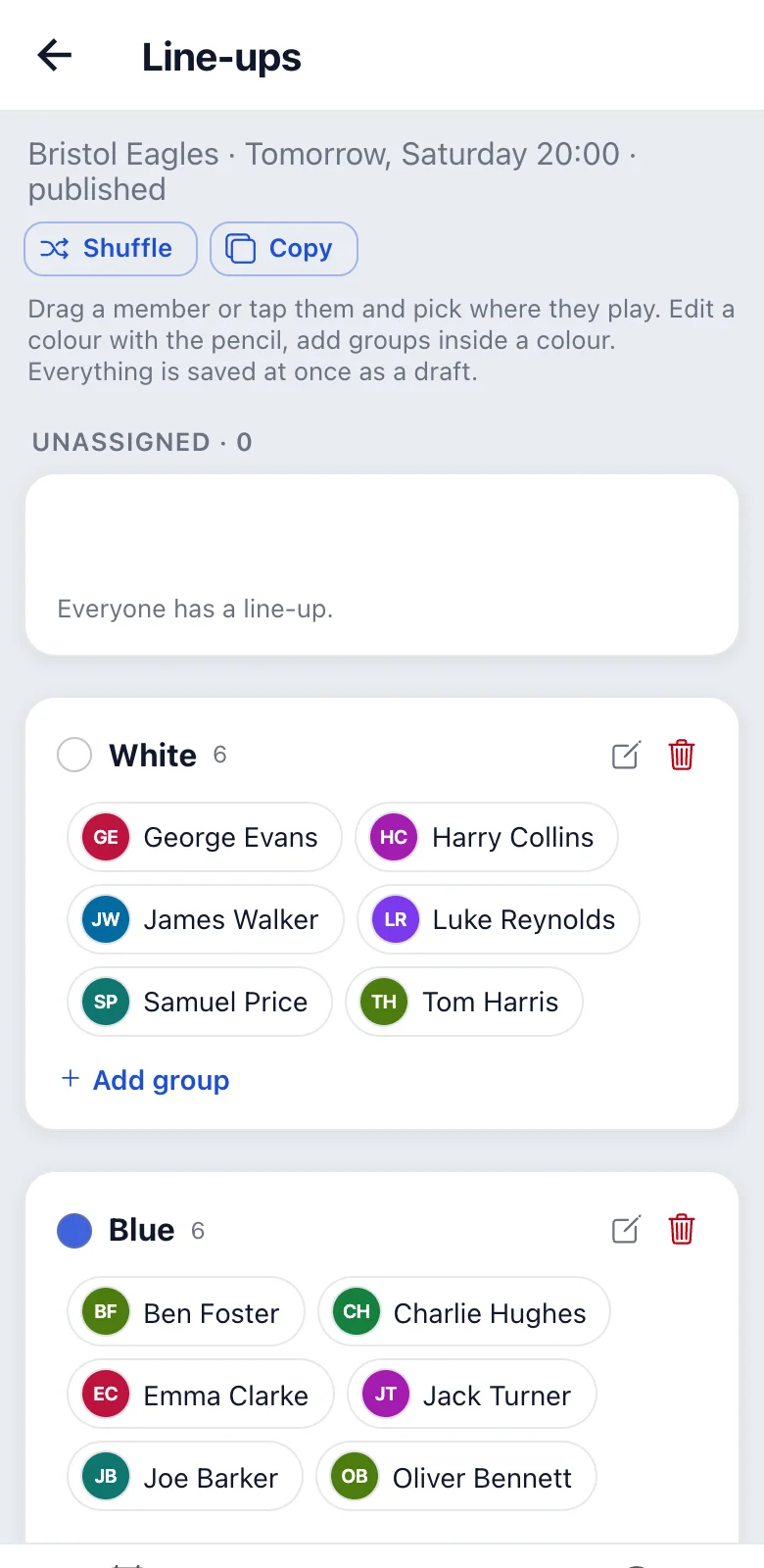
- Drag a member to a colour (or group); on a phone you can also tap them and choose where they play.
- “Shuffle” spreads the unassigned evenly (or shuffles everyone again).
- “+ Add colour” below the line-ups: any number of colours (name + dot colour). There are five dot colours to choose from (white, black, red, yellow, green) and “Custom”, that is any colour. The name is suggested from the dot colour (“Reds”…), you can change it. Tapping the name (or the pencil) renames it, tapping the dot changes the colour right away; a dot colour can repeat, e.g. “Reds 1” and “Reds 3” for two games at once; two colours cannot have the same name. The red bin removes a colour and its members go to unassigned. Renaming a colour does not break up the line-up.
- Groups (optional), e.g. “Attack” and “Defence”: “+ Add group” in the colour's section; every colour has its own. Tapping a group's name (or the pencil) renames it, the bin removes it and its members stay in their colour without a group.
- Set the colours and default groups of the first line-ups in the team settings (“Line-up colours”); later trainings take the colours and groups of the previous one (a match those of the previous match).
Publishing line-ups
Everything is saved as you go as a draft; members do not see it. Only “Publish line-ups” sends notifications. If you change something after publishing, the button changes to “Publish changes (N)” and only those whose colour or group changed get a notification (they are highlighted).
Whoever signs up only after publishing is in the “Unassigned” block. Members do not see them in the line-ups until you place them and tap “Publish changes”.
“Copy” gives you the line-ups as text, to paste into the group chat (WhatsApp, Messenger…).
When someone opts out after publishing, their place in the line-up stays empty and marked (in the line-up editor with a red exclamation mark), and the person who published the line-ups (it can also be the treasurer) gets a notification. What happens next is up to you.
Taking attendance
This is the most important thing you do after a training, because money depends on attendance.
Attendance is taken by an admin or the treasurer:
- Once the training has started, tap “Close attendance” in its details. The same link is on the training's card (“Attendance not closed”) and among past trainings. All trainings waiting to be closed are on the team page (a banner “2 trainings wait for attendance to be closed” on the Team tab, the list “Waiting for attendance to be closed” on the Trainings tab) and on the home screen, the oldest 50; more show up once you close these.
- Everyone who signed up with “Playing” is ticked as present. Reserves are also under “Signed up”, but not ticked: if they came, tick them. Someone who signed up and left the team after the start is listed too, so their training is still charged.
- Untick those who did not come. In “Other members” tick those who came without signing up (also a member with a suspended membership). With more than 10 people in a list, “Search by name” above it finds a member.
- Tap “Close attendance”. Only then does the app charge the fees.
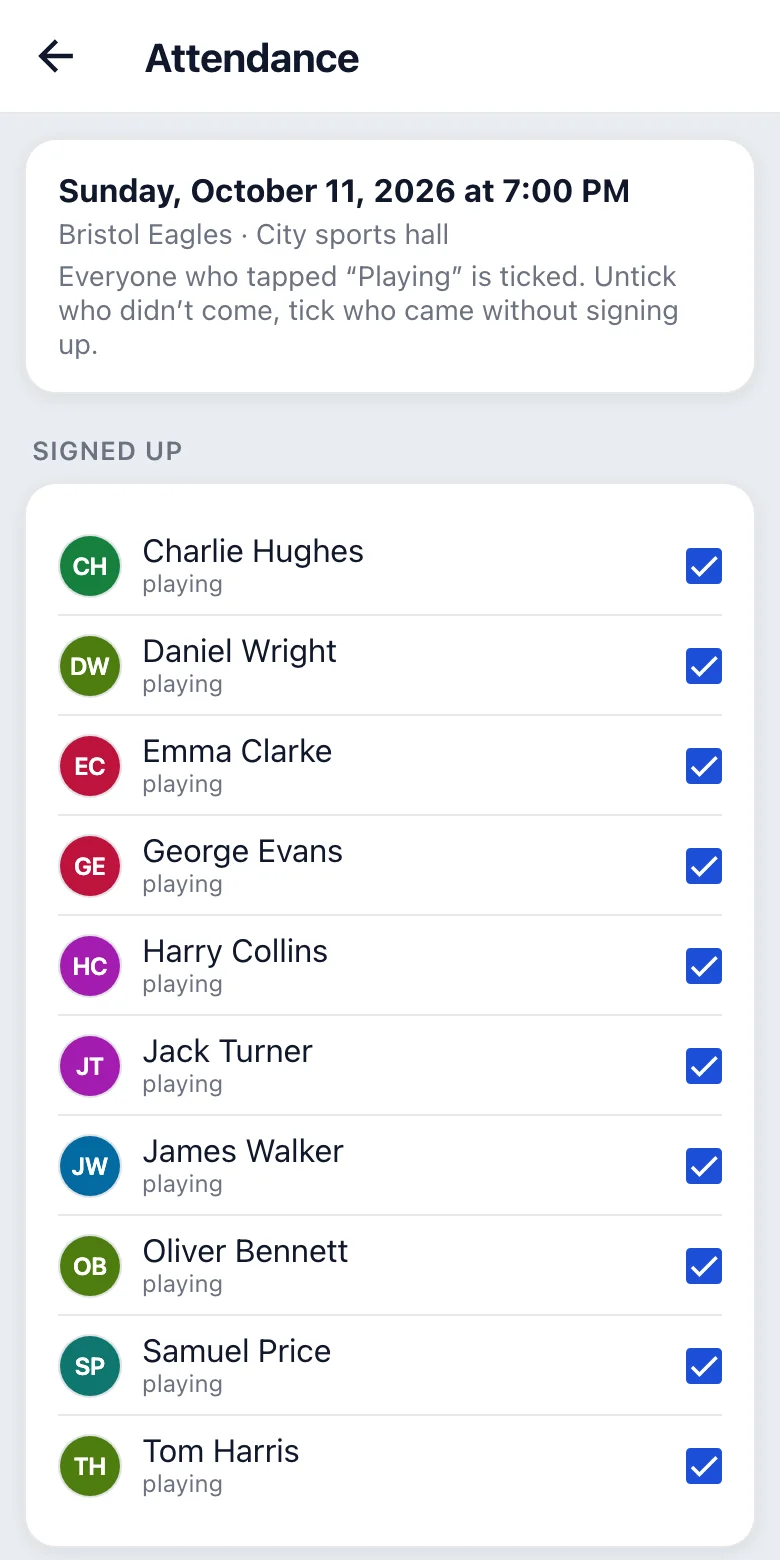
Until you close it, the app cannot tell whether “nobody came” or “nobody has checked yet”. That is why it keeps a list of trainings waiting to be closed. Admins and treasurers get a reminder (“Attendance not closed” in Profile → Notifications) once, at 10:00 in the morning after the day of the training. Older trainings that are not closed get no more reminders; they wait in the list.
Made a mistake? Attendance can be corrected after closing (“Correct”). The app recalculates the fees: it deletes nothing, it adds a correction.
After the start a training can no longer be cancelled. If it did not take place, close the attendance with nobody present; then nobody pays anything.
Statistics
Who attended which trainings is shown (to the admin and the treasurer) in “Statistics” above the members list on the Members tab of the team page. At the top you choose the Period: tap This month, Last month, This season or This year, or tap the field and pick the first and the last day in the calendar. By default it is the season (from 1 September) until today. Below is a table: the first column has the members, right next to the name the “Total” column (e.g. “7 / 9”), and then a column for every training with its date and a ✓ for those who came. Scroll the table sideways, the names stay in place; tapping a date opens the training, tapping a name opens the member.
Only trainings with closed attendance count (the same as for charges), cancelled ones do not; trainings still waiting for attendance to be closed are listed separately. Whoever played in the period and left afterwards stays in the table as a “former member”. The period can be at most 400 days.
You also see one person's attendance on their page (tap them in the members list), in the “Attendance” section: a summary for this season and every past training during their membership with their answer and whether they came (more in the member's guide).
“Excel” in the top right corner downloads the same table as an .xlsx file (on a phone
the share menu opens; save it to your files or send it by email).