
Member
Joining a team
There are three ways to get into a team:
- With an invite link that an admin posts in the team's group chat. This is the most common one.
- Through the search, if the team is listed in the search: in the Teams tab type the team's name and tap “Apply”. An admin of the team always has to approve such a request: they get a notification about it, and you then get the answer. Verified teams have a tick ✓ after their name and come first; for each team you also see since when it is in Rozpiska (Verified team).
- With a link to a training that someone from the team sends you. You see the training and the team and tap “Apply to join” (if you are not signed in, sign in or create an account first). An admin of the team always has to approve this request too.
After opening the invite link you see a preview: the team's name, sport, city and number of members. You do not see the payment details yet; they appear only once you are a member. Below the preview, depending on the situation, there is:
- “Join the team”: tap it and you are in the team. If you are not signed in, first sign in or create an account right on this page.
- “Apply to join”: the team approves new members. After tapping it you wait until an admin approves you; the team is already on your list, marked “Pending”.
- “Go to the team”: you are already in it.
- “Your request to join waits for an admin.”: you have already applied and are waiting for approval.
- “Link expired” and “Ask the team’s admin for a new one.”: the admin revoked the link.
When the admin decides about the request, you get a “{team} – Request approved” or “{team} – Request rejected” notification (then you can ask again with the same link).
If someone in the team already has the same name as you (case and accents do not matter), you cannot join until you change yours. The link page shows “Someone in {team} already has the name {name}…” and “Until you change your name, you cannot join the team.” Change it right there, e.g. add a nickname or your year of birth (“Save name”), and then join. In the search such a team shows “Change your name first, someone here already has it” and “Request” does not work. Nor can you change your name in the profile to one someone in your teams already has. If you already share a name with someone in a team (from before this check), Profile → My account tells you.
“Is this you?” An admin may have added you to the team before you had the app (a member without an account, e.g. from the team's group chat). When your name looks like theirs (the same, or a shortened last name such as “Tomasz Sz.”), the link page, the search and a shared training first ask “Is this you?” with their name and photo. “Yes, it's me” sends a request; once an admin confirms it, that member becomes you and you see your trainings, attendance and balance right away. “No, that's not me” lets you join as usual.
Your teams are in the Teams tab, each with your roles (admin, treasurer). The team page has three tabs at the top:
- Team: “Next training” (with “Playing” / “Not playing” right there; if none is scheduled yet, a card says “The next training isn't scheduled yet”; admins add another one with “Add”), your balance, your price, the plan choice, “Team contacts” (admins and treasurers, with a phone if they added one) and the team information,
- Trainings: “Last training” and “Show past trainings” (only this team's, see Past trainings and attendance), the team's upcoming trainings and the calendar,
- Members: the list of the team's members.
“Leave team” (or “Cancel request” while you wait for approval) is at the bottom of the Team tab.
Team notice
When the admin or the treasurer has news for everyone (another price this month, no training next week), they pin it at the very top of the Team tab, with who wrote it and when. If they chose to notify the team, you also get a “{team} – Notice” notification.
Team information
On the team page, the Team tab has an “Information” section (shown when there is something in it). The admin keeps there what you should know: text (rules, parking…), files and links. Tapping a file downloads it (on a phone the share menu opens), tapping a link opens the page.
Signing up for a training
The training card has two buttons: “Playing” and “Not playing”. One tap is enough. Below them it says until when sign-ups are open. Some teams have “Coming” and “Not coming” instead (the admin chooses); they work the same, this guide says “Playing” / “Not playing”.
Until sign-ups close you can change your mind as often as you like. If you are signed up (Playing or Reserve) and tap “Not playing”, the app first asks “Not playing?”, so that you do not give up your place by mistake. The other way round, from “Not playing” to “Playing”, it asks “Playing after all?” (and when the training is full, it says you will be on the reserve list). Tapped “Not playing” by mistake without having answered before? For a few seconds “You're out of this training” appears at the bottom with an “Undo” button, which brings back no answer.
You can always opt out of a training (Not playing), even after sign-ups close (see Sign-ups have closed).
Sign-ups may open only a few days before the training. The card then says “Sign-ups open in … days, on …” and you can tap “Not playing” already. When sign-ups open and you have not answered yet, you get a “{team} – Sign-ups open” notification (for several trainings at once, a single one with all the dates). Whoever has already tapped “Not playing” does not get it.
What the training card shows
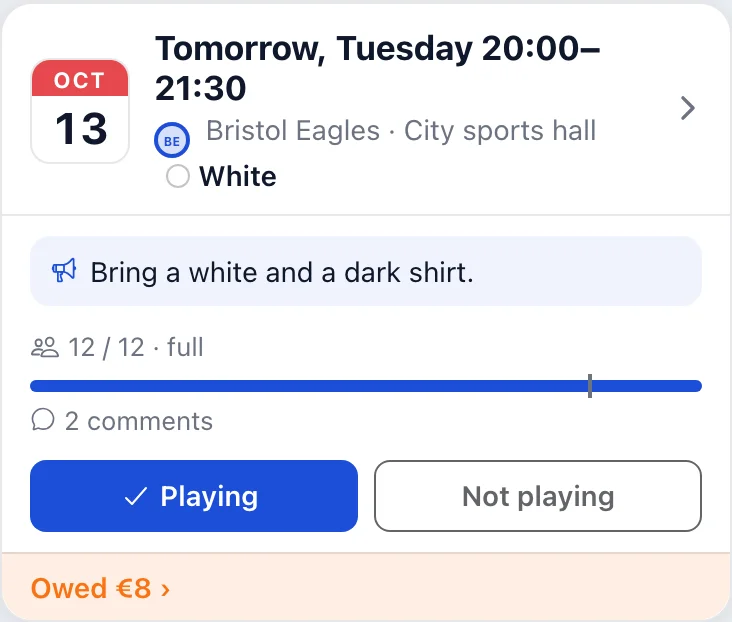
- The date on the small calendar page on the left, e.g. “OCT” above “12”; today's training has it outlined.
- The time: “Today, Tuesday 22:15”, “Tomorrow, Wednesday 22:30”, then the day of the week and “in 3 days”.
- The admin's note above the buttons (“we play on half of the pitch today”, “bring white shirts”).
- How many people have signed up out of how many places, e.g. “8 / 12” (“8 / ∞” when the number of places is unlimited), and a bar with a mark at the team's minimum; the ⓘ icon shows how many signed up, the number of places and the minimum.
- The state: “3 members missing”, “takes place” (once the team’s minimum is reached), “full”; during the training “in progress”, after it “took place” (only in the training details: the card of a finished training turns grey, without the sign-up count). Once an admin closes the attendance, the card and the training details show You were present or You were absent.
- The number of comments.
- Match: the “Match” label with the match name above the date and a blue stripe on the left. You sign up the same way as for a training.
The list of trainings
The home screen (the Trainings tab) shows the trainings from all your teams:
- “Upcoming trainings”: this week (and when there are only a few, at least the next three); “More trainings” shows the rest, at most two months ahead (50 trainings). Later ones are in the calendar. The next training has a pulsing dot and “Next” above its date. When no training is scheduled yet, a card says “The next training isn't scheduled yet” (admins get “Add” on it).
- “Last training” above them, the one that already took place (e.g. “Yesterday, Sunday 23:50” or “2 weeks ago”). Older ones are in Past trainings and attendance.
“Upcoming trainings” on the team page (the Trainings tab) shows the team's trainings two months ahead without a limit. Pull the list down to refresh it.
Training details
Tapping a card opens the training details: the date on the calendar page, the time from start to end, the place and the admin's whole note (links in it can be tapped).
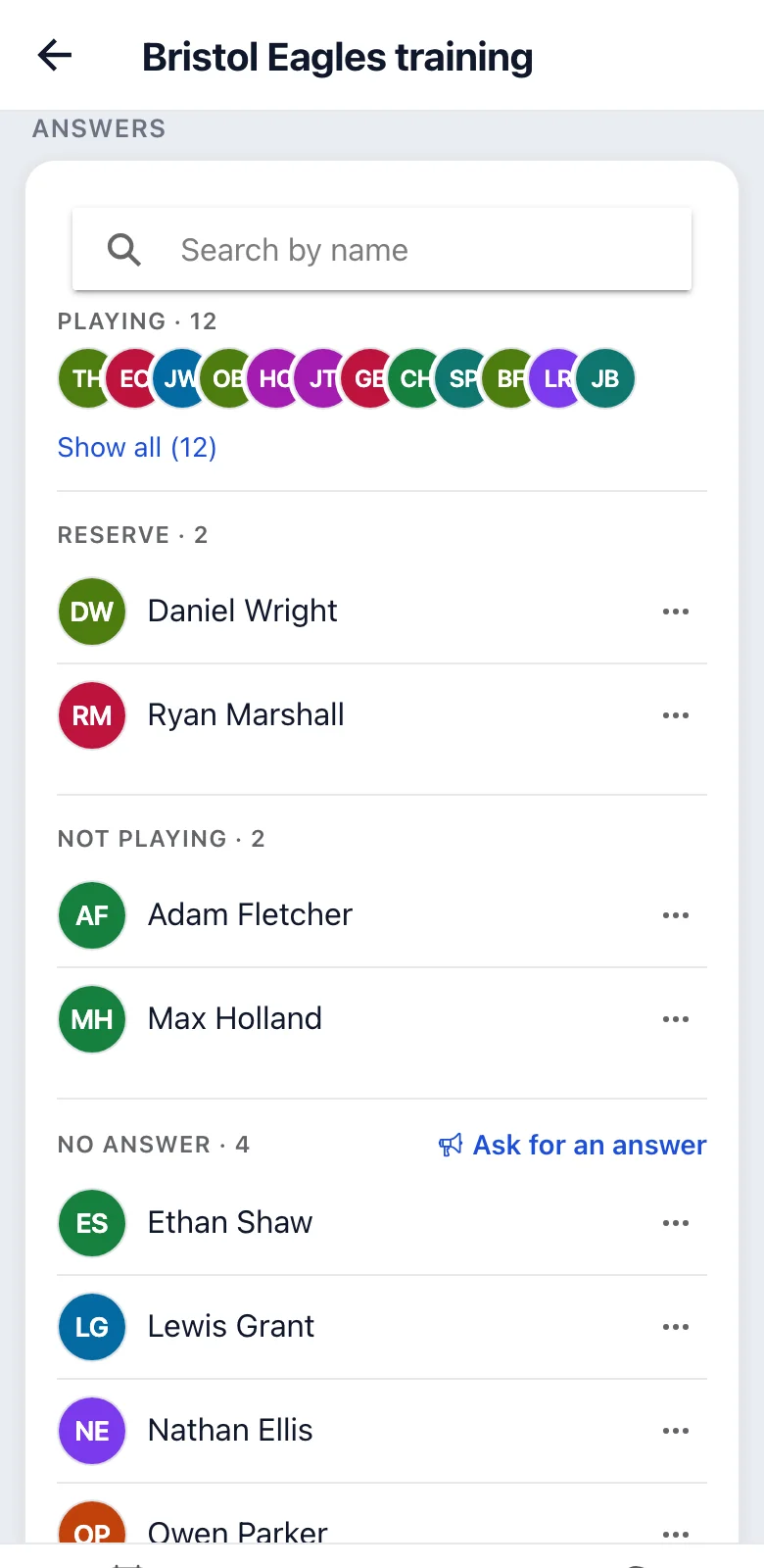
The Answers section has the full lists Playing, Reserve, Not playing and No answer; every team member sees them. A person added by an admin is marked “added by admin”. Under each name it says when they answered (“5 minutes ago”, “yesterday at 22:30”); once the training is over, how long before the start (“an hour before the start”, “during the training”). When a list has more than 5 people, it is collapsed to just the pictures; “Show all” expands it. With more than 10 answers, the “Search by name” field above the lists finds anyone whose name contains what you type (capitals and accents do not matter, and “ivan” also finds “Іван”); groups without a match are hidden.
If you have not answered yet, an admin can ask you to. You get a “{team} – Do you play?” notification and just tap “Playing” or “Not playing”. When an admin changes the note, they can send the team a “{team} – Training note” notification about it.
Sharing a training
In the training details there is a “Share” icon at the top right: on a phone the share menu opens (WhatsApp, Messenger…), on a computer the link is copied to the clipboard (“Link copied”). In the chat the link shows a preview: the team, the training or the match title, the day and time, the place and the team's picture, in the language you use the app in. Who signed up and payments are never in the preview.
A member of the team gets straight to the training through the link. Someone outside the team sees the training and the team and can “Apply to join”. An admin of the team always approves the request. An address copied from the browser shows no preview in the chat and does not work for people outside the team, so send the link with “Share”.
The training is full
When the training is full, “Playing” puts you on the reserve list: the button changes to “Reserve” and the card says “you are on the reserve list”. When someone opts out or an admin adds places while sign-ups are open, everyone on the reserve list gets a “{team} – Spot free” notification and the place goes to whoever takes it first: while a place is free, your button says “Take the spot”. There is no queue: first come, first served; if someone beats you to it, you stay on the reserve list. After sign-ups close no notification is sent; only an admin can fill the free place.
Guest at a training
If the team allows guests, you can bring someone who is not in the app, e.g. a friend when players are short. In the training details tap “Add a guest” (under the buttons or next to the “Playing” heading), type the name and tap “Add”. The guest joins those playing (the reserve list when the training is full) and has a coloured “Guest” badge with “added by” and your name under it. You can add as many guests as you like.
A guest has only a name in the team: they do not sign in and get no notifications. When you bring them again, tap their name under “Earlier guests:”. When you type the name of a guest who has been in the team before, the app shows when they last played and asks whether it is the same person; if not, add e.g. a surname. A guest cannot have the same name as a team member, so add e.g. a surname.
You can add a guest while sign-ups are open, just like yourself. You or an admin remove them with “…” next to their name → “Remove guest”. When the guest is on the reserve list and a spot frees up, the “Spot free” notification comes to you, and you take the spot for them with “…” → “Take the free spot”.
The guest pays for the training themselves, like everyone else: the charge appears once attendance is taken, and the treasurer sees it under Debtors together with who added the guest. Usually they pay cash in the locker room.
When the guest later joins the team under the same name, the team page asks them “Were you the guest …?”. “Yes, it was me” moves the guest's trainings, charges and payments to them, along with sign-ups for coming trainings. “No, someone else” hides the question for good.
Goalkeeper
In a hockey team an admin can mark you as a goalkeeper (a “Goalkeeper” badge at your name). Goalkeepers have their own places at a training, the card shows e.g. “Goalkeepers 1 / 2”, and they do not count towards the places of the others. A goalkeeper never goes to the reserve list, even when the training is full. When the goalkeeper places are taken, the app tells you after you tap “Playing” that there are enough goalkeepers and how many you will be; you can still sign up. When goalkeepers are missing at a training, you may get a “Goalkeeper wanted” notification. If you want to play otherwise, ask an admin to remove the mark.
When adding a guest you can turn on “Comes as a goalkeeper”: the guest takes a goalkeeper place and never goes to the reserve list. For a guest who came as a goalkeeper before the switch is already on, and you can turn it off. While the guest is signed up for another training, it cannot change.
Sign-ups have closed
A training can have a time when sign-ups close (e.g. 4 hours before the start). If it has none, sign-ups are open until the start. After they close you cannot sign up yourself (the card says “Sign-ups are closed. You can still opt out.”); an admin can add you. If your membership is suspended, you cannot sign up yourself either; only an admin can add you.
You can always opt out of a training, even after the line-ups are published. The app only asks whether you are sure and says that after that only an admin can sign you up again. If you were already in a published line-up, the person who published the line-ups gets a notification so they can rearrange them. The question before opting out also says which line-up you have a place in.
There is nothing to pay for opting out late and there is no penalty for it. The organiser can see it; the app draws no conclusions from it.
The training is moved
When an admin changes the time or place of a training, you get a “{team} – Training moved” notification with both the original and the new date. If the new date does not suit you, tap “Not playing”.
The training is cancelled
An admin can cancel a training (not enough signed up, venue unavailable, another reason). You get a notification with the reason. A cancelled training stays on the list crossed out, with the reason, and costs nothing, even if you were signed up. If the admin restores it, you get a notification too.
Calendar
In the Trainings tab the List / Calendar switch at the top turns the list into a calendar; for a single team you also open it with the “Calendar” button next to “Upcoming trainings” on its page. The calendar shows the trainings of all your teams in a month view (the week starts on Monday). Every team has its own colour: the admin picks it, and if they do not, the app picks one. At the top you can leave All or choose one team; the app remembers your choice on this device.
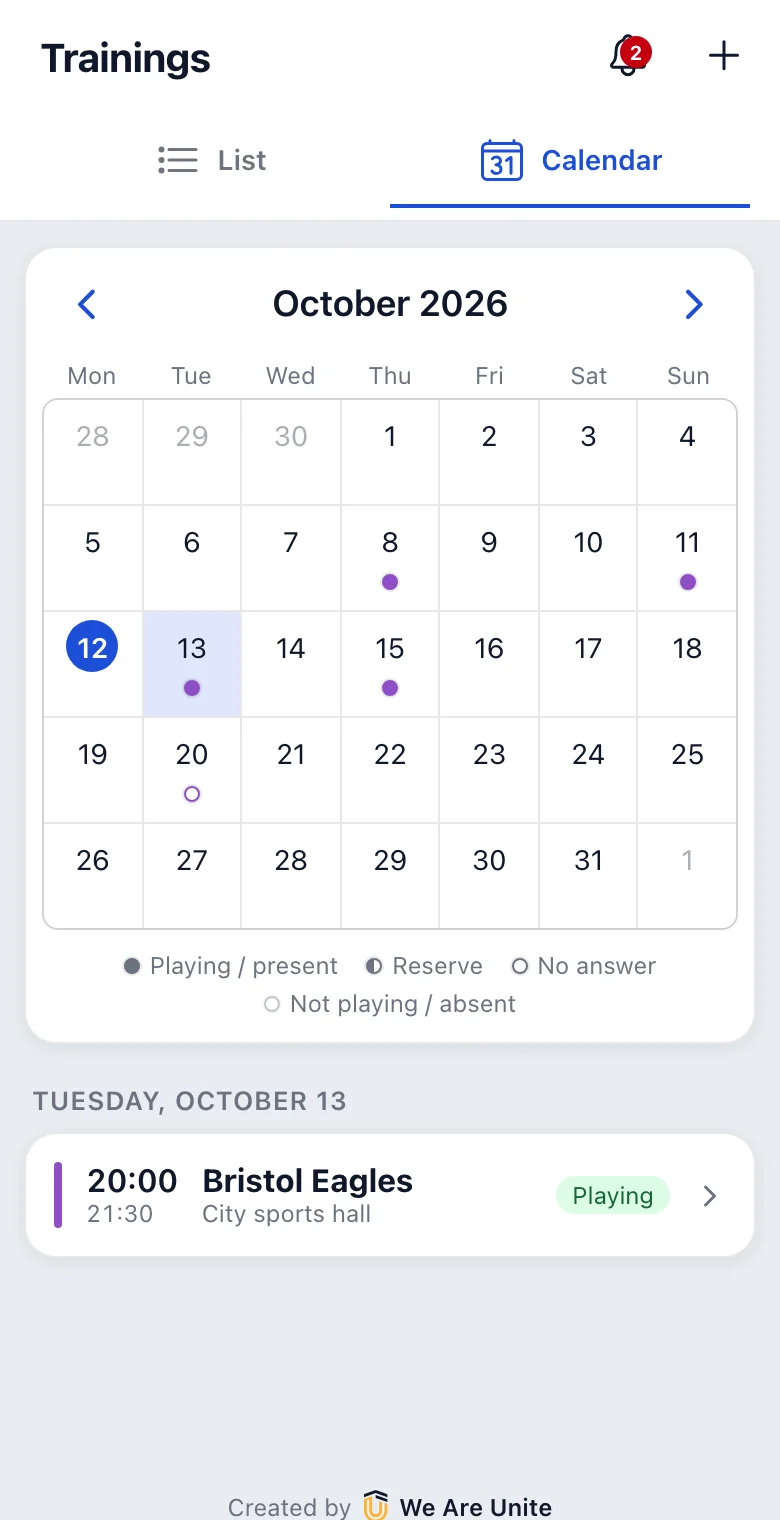
On a phone every training is a dot in the team's colour; on a wider screen you also see the time and the name. The dot shows how you answered:
- full: you are signed up,
- half filled: you are on the reserve list,
- empty circle: you have not answered yet,
- faded circle: you opted out.
A cancelled training is grey and crossed out. Tap a day and below the calendar you see its trainings with the time, place and your answer; tapping a training opens its details, where you can sign up. Change months with the arrows or by swiping sideways; Today takes you back to the current month. Times are always in Central European time, also when the clocks change between summer and winter time.
In your calendar (phone, Google, Outlook)
“Add to my calendar” under the calendar on the Trainings tab (the Calendar view) puts the trainings of the team picked in the filter (with “All” it first asks which team) into the calendar you already use: “Calendar on this phone or computer” (iPhone, Mac, Outlook), “Google Calendar”, or “Copy link (for another calendar)” if you want to add it by hand as a subscribed calendar. The calendar then updates itself (usually within a few hours), including changes and cancelled trainings. Signing up still happens in Rozpiska.
The link is yours alone; do not send it to anyone. When you leave the team or delete your account, the trainings disappear from your calendar. If the link got to someone else, “Block the old link (if someone else has it)” stops all your old links (in all teams); then add the calendar again.
Past trainings and attendance
In the Trainings tab, above the last training, there is “Show past trainings”: it expands the trainings that already took place in the current month (with a summary, e.g. “Attended: 7 of 9”), and “Show previous month” above them adds the month before. The list runs from the oldest down to the upcoming trainings. Each one shows whether you were there, according to the attendance closed by the admin (the same as for charges): Present, Absent or Attendance not closed (not closed yet). Tapping one opens the training details. The “Playing” / “Not playing” buttons stay on a past training, but disabled: they show what you answered.
In the calendar, past trainings with closed attendance show the same: a full dot = you were there, a faded one = you were not; the others show your answer (“Playing”, “Not playing”…).
All your attendance in the team is on your own page in the team (on the Team tab tap “Your balance”), in the “Attendance” section. At the top is a summary, e.g. “This season: 14 of 18 (78 %)”: from 1 September, only trainings with closed attendance, cancelled ones do not count. Below it are all past trainings since you joined the team, newest first, with your answer (“Answer: yes”, “No answer”…; “answered by an admin” when an admin signed you up) and whether you were there: Present, Absent, Attendance not closed or Cancelled. “Load older” adds more. Tapping a row opens the training details.
Line-ups
An admin or the treasurer splits the members into coloured line-ups (e.g. reds and blues, sometimes with groups like “Attack” and “Defence”). They can publish them any time before the training ends, usually after sign-ups close. When they are first published, every placed member gets a notification with their colour. Under the “Playing” / “Not playing” buttons the training card then says You play in with your colour (and group), and the details show your colour (and group) in large print right above the “Playing” / “Not playing” buttons, with all line-ups in one block below. So you know which shirt to pack. If an admin later changes your colour, you get a notification again; if they change someone else's, you do not.
You usually get the same colour as last time. An admin can change it.
Comments
Below the training details there are comments, e.g. “who brings the balls?” or “I'll be 10 minutes late”. Write a comment in the field at the bottom and tap the arrow. On a comment you can:
- give it a heart (tap again to take it back),
- Reply: the reply appears under the comment. When you reply to a reply, it starts with
@Nameand goes to the same thread, - use ⋯ to edit your comment (it then shows “edited”) or delete it.
When someone replies to your comment or gives it a heart, you get a notification (a heart only in the inbox, without a push notification). Tapping it opens the training scrolled right to that comment. You can comment only until the training ends or is cancelled; after that comments can only be read.
Messages
You can write directly to your team's admins and treasurers. On the Team tab, in “Team contacts”, tap the paper plane icon by an admin's or a treasurer's name. A conversation opens just for the two of you; nobody else in the team sees it. Players cannot write to each other, but an admin or a treasurer can write to you.
All your conversations are under the speech bubbles icon at the top right, next to the bell. The number on it shows in how many conversations you have unread messages. With each person you have one conversation, even if you share several teams; under their name you see the teams you share. With “New message” you pick the person from all your teams; when there are more than 10, type the name in the search field.
- Type the message in the field at the bottom and tap the arrow. Web addresses turn into links.
- Messages are grouped by day under a grey heading (“Today”, “Yesterday”, “Friday 11/6”). Tap a message to see its full date and time; under your own message you also get Edit (it then shows “edited”) and Delete (the app asks first, “Message deleted” stays in its place).
- Double-tap the other person's message to put a heart on it, double-tap again to take it back. You both see it in the bottom right corner of the message.
- Once the other person has read your last message, “Seen” appears under it.
- An open conversation refreshes itself every few seconds.
If you do not read a message within 5 minutes, you get the notification “Message from {name}” with the start of the message (in the inbox and as a push, not by e-mail). The next one comes only after you open the conversation, so a quick exchange does not flood you. While you are waiting for approval in a team, an admin can write to you and you can answer. Once you no longer share any team (one of you left or the team was deleted), the conversation becomes read-only. If someone deletes their account, their messages and comments stay under the name “Deleted user”.
What I pay for
You pay for the trainings you attended, not for the ones you signed up for. After the training an admin takes attendance and only then a charge appears.
The team decides how you pay. You have one of two ways:
- Per training: after each training you attended a charge is added, e.g. 30 zł.
- Subscription: on the first day of the month one charge is added for the whole month. A subscription can be “unlimited” or a pack (e.g. 8 trainings). Trainings beyond the pack are charged one by one; unused ones expire at the end of the month.
On top of that the team can have a season fee, once per season.
Your price can be individual: the treasurer can set you a different rate or zero (e.g. the coach plays for free). You see only your own price, not anyone else's: on the team page under your balance, e.g. “Your plan: 30 zł per training” or “Your plan: 8-pack · 180 zł / month · 8 trainings”. If the team has plans, there is “Other plans” next to it: it expands the whole offer below, that is “Per training” at the team price and every plan with its price; yours is marked “Your plan”. You have the same on your own page in the team.
Want to change your plan (e.g. switch to a subscription)? If the plan choice is not open right now, write to an admin. The change applies from the first day of the month, retroactively too if you agree on that: an admin can give you a subscription for the current month even on the 20th, and the app recalculates what it has already charged.
Your charges and plan history are on your own page in the team (tap your balance on the team page): every training, subscription, season fee and correction (cancelled items are crossed out).
Choosing my plan for the month
The treasurer can ask you to choose your plan for the month yourself. You get a notification, and the team page shows a “Choose your plan for November” card with the deadline below it (“until 3 November”) and the offer. Your current plan is already selected: “Confirm” and you are done. You can also select another plan or “Per training” and tap “Save choice”. Once you have chosen, the card shrinks to one line (“Plan for November: 4-pack”). Until the deadline you can change it with “Change” or take it back with “Take back” (as if you had not chosen; without a new choice you will have no plan for the month). The day before the deadline, if you have not chosen yet, you get a “{team} – Plan choice is ending” reminder. After the deadline only an admin can change your plan.
The plan is chosen for each month separately: if you do not answer by the deadline, you lose your plan for that month and pay per training (if the team offers it).
A pack is charged straight away if the month has already started, otherwise on the 1st of the month. If the team does not offer “Per training” in a given month and you have no plan chosen, you can sign up for a training only after choosing; the training then says “Choose your plan for this month first”. Do you have an individual price? Then this does not apply to you.
My balance
Balance = what you paid (and the treasurer confirmed) − what was charged to you.
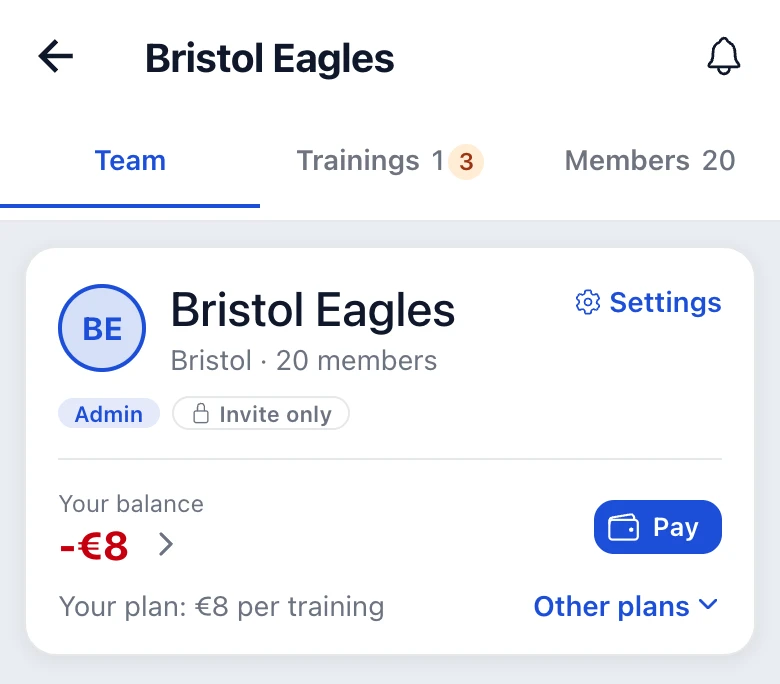
One balance per team. It is never added up across teams and always shown with the team's name. On the team page, in the members list (the Members tab), you see your own debt next to your name (in red); only the admin and the treasurer see other people's debts.
- Red = you owe money. Only this is red; a normal charge for a training is not bad news. The team page and your own page in the team then show a prominent “Pay” button next to the balance (without a debt it is less prominent; you can also pay in advance). If you have already reported part of it, the balance adds “… to pay”, that is what is left after the reported payments. When the reported payments cover the whole debt, the amount is no longer red and below it is “… waiting for confirmation”. The number itself changes only after the confirmation.
- Zero = you are all square: the team page shows a green “You are all square” next to the balance.
- Positive (e.g. “+20 zł”) = an overpayment. That is normal: you paid 100 and 80 was charged, so you have +20 zł and the next charge is taken from the overpayment first.
You cannot leave a team while you owe money: the app first asks you to pay (a reported payment is enough). If a debt appears only after you have left (e.g. the treasurer adds something afterwards), it waits for you when you come back.
In the Teams tab every team shows the next training and, only when you owe something, the amount in red. The full balance is on the team page on the Team tab, in the first box under the team's name (“Your balance”). Tapping it opens your own page in the team (the heading is your name, then “Balance in …” and “Payment history”). You also see your balances on the home screen in “My teams”; tapping a row opens the team page.
In Profile → My payments you have the balance and the latest transactions in each team. Confirmed payments are green, payments waiting for confirmation (“pending”) and rejected ones (“not received”) grey. The reason for a rejection is in “Whole history”.
Paying
You make the transfer in your bank and report in the app that you have paid. The app has no access to your bank: the treasurer has to see the payment on the statement and confirm it.
Tap “Pay” next to the balance (on the team page, on your own page in the team or in Profile → My payments). Then step by step:
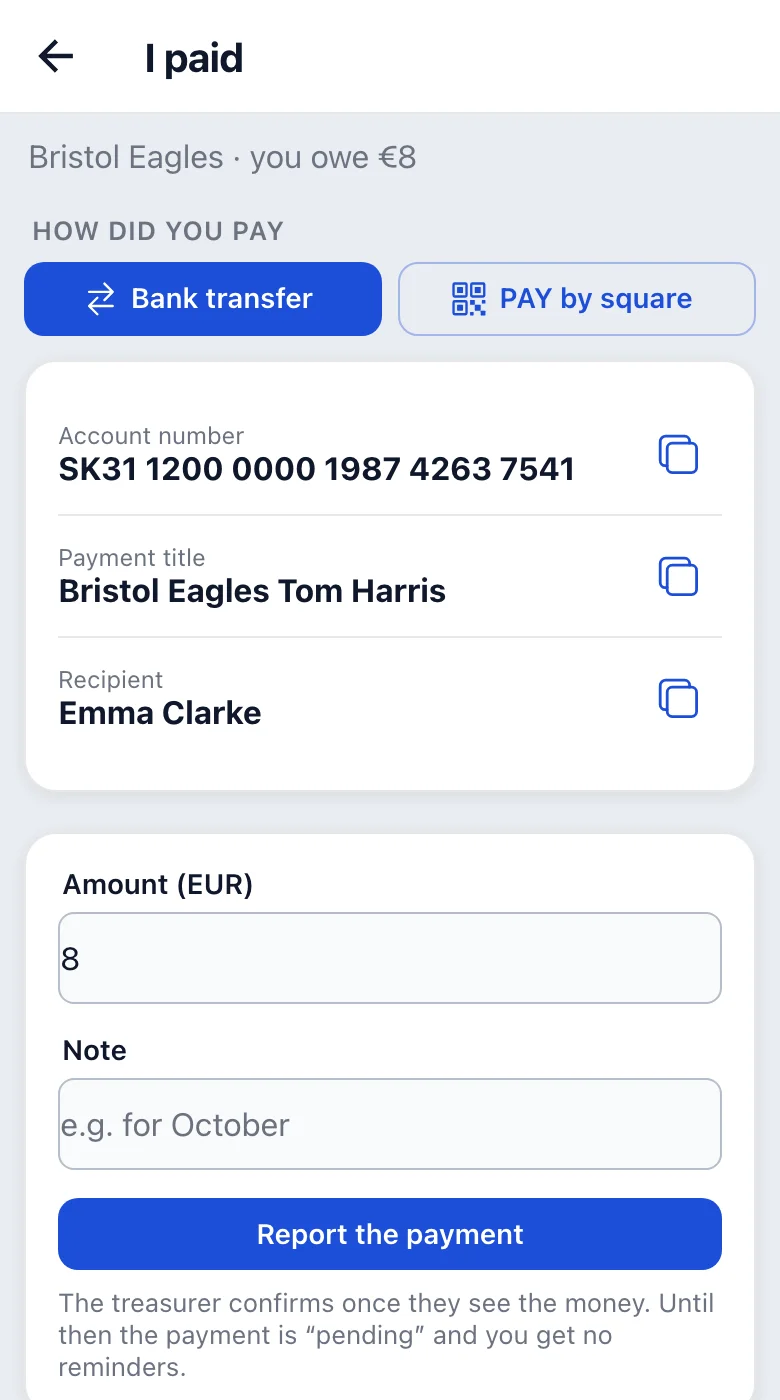
- How did you pay: one of the options the treasurer ticked: Cash, BLIK, Phone payment, Bank transfer, PAY by square, QR Platba or Revolut.
- Details: the phone number, the account number or the Revtag, the recipient's name and a ready payment title, each with an icon to copy it. For PAY by square and QR Platba you get a QR code with the amount and payment title filled in: scan it in your bank app. Revolut has an “Open Revolut” button. For Cash you only see the recipient, the person you give it to.
- Amount: suggested from your debt minus the payments you have already reported (at the top you see how much is “waiting for confirmation”), you can enter another one.
- Note (optional) and “Report the payment”.
If the treasurer has not filled in any payment details, the app says so. Then you pay cash or arrange it with the treasurer.
After you report it, your payment is “waiting for confirmation” and the balance does not change yet. When the treasurer confirms it, you get a notification and the balance is updated. When they reject it (“not received”), you also get a notification with the reason, and the rejected payment stays in the history with that reason. You can sort it out with the treasurer and report the payment again.
You give cash to the treasurer in the locker room, after the training or even the next day. If the team offers it, report it here like any other payment, so the treasurer does not have to remember it: they confirm it once they have the money. If they tick you off in the locker room, that confirms your report and nothing is recorded twice. You get a notification when it is confirmed, so check that it arrived.
I owe money: what happens?
It depends on the team's setting:
- By default nothing is blocked. You see the debt in red next to your balance, you are on the treasurer's list of debtors, but you can sign up.
- The team can turn on blocking: with a debt above a set amount you cannot sign up for a training. In the soft version a reported “I paid” unblocks you; in the hard version only the treasurer's confirmation does. Below the buttons you then see “Owed 30 zł, pay to sign up”. An admin can add you despite the block.
The treasurer can send a reminder to all debtors at once or just to you. You do not get the bulk reminder if you have a reported payment waiting for confirmation; a reminder sent directly to you always arrives.